Showing posts with label battery. Show all posts

Friday, August 3, 2012

How to Replace a Dell Laptop Keyboard

Laptop keys are fragile and flimsy and if you use the laptop keys a lot, chances are, at least one will pop-off. If this happens, you can probably end up replacing it. Even if you have warranty coverage, Dell Computers will insist that you change the keyboard and will not pay a technician to replace the laptop keyboard for you. This article will tell you how to replace the keyboard on an Inspiron 1501 laptop.

How to Replace a Dell Laptop Keyboard thumbnail

Instructions


  • 1


    Order item number J617 from Dell computers. It will arrive with everything you need except the small Philip screwdriver. The package will contain the instruction manual, plastic scribe and of course the new keyboard.
  • 2

    lay laptop flat

    First, turn the laptop off, disconnect power source and remove the battery. Then, lay the laptop flat (180º) on the table or desk where you plan to change the keyboard.


  • 3

    insert scribe and pop up the hinge cover

    Using the plastic scribe, gently insert under the hinge cover's corner and lift the hinge cover off of the laptop. Be gentle. May require a little wiggling to ensure the little connectors pop out of their location.
  • 4

    remove hinge cover

    Once the hinge cover is removed, lay it to the side.
  • 5
    Locate the two small M2.5 x 5mm screws that attach the keyboard to the laptop and use the small Phillips screwdriver to remove them. There is at least one on each side of the laptop. They were hidden by the hinge cover and should be visible once that cover is removed.
  • 6
    Use the plastic scribe, insert under keyboard and gently lift. Little nodules on the end of the key board and a keyboard cable in the center secure the keyboard to the laptop. Gently wiggle the keyboard until it is loose.
  • 7


    Pull up on the keyboard cable until it pops loose. Set the bad keyboard to the side.
  • 8


    Take the new keyboard and insert the cable into the cable slot on the laptop. Press the cable lift down on top of the cable and secure it. (It is imperative that you get this part right otherwise, the keyboard will not work when you put it back together!).
  • 9


    Insert the nodules on the end of the keyboard in their respective slots and replace the two M2.5 x 5mm screws.
  • 10
    Replace the Hinge Cover.
  • 11


    Turn the laptop on and - VOILA! You are back in business.

Friday, July 13, 2012

All kinds of Quality Laptop Battery's Supplier

Laptop battery orders with same day shipping cut off is now 1pm. We are a manufacturing representative and distributor of laptop batteries, digital camera batteries, camcorder batteries, laptop AC adaptors, laptop DC adaptors, power tools batteries and other portable accessories, serving over India and most Asia countries. We sale high quality digital camera batteries for Canon, Casio, Fujifilm, Kodak, Nikon, Olympus, Panasonic, Sony and more. 9 Years Professional Experience!
  • laptop AC adaptorsLaptop AC Adaptors Quality laptop AC adaptors for Acer, Asus, Dell, Fujitsu...
    More...
  • Laptop DC AdaptorsLaptop DC Adaptors Quality laptop DC adaptors for Fujitsu, HP, Levono, Panasonic, Sony...
    More...
  • HDMI CablesHDMI Cables®HDMI is a compact audio/video interface for transmitting uncompressed digital data...
  • cordless drill batteryCordless Drill Battery Replacement cordless drill battery for Bosch, Dewalt, Makita
Laptop Batteries
Acer Aspire Series
Acer Extensa Series
Acer Ferrari Series
Acer Quanta Series
Acer Travelmate Series
Apple iBook Series
Apple MacBook Series
Apple PowerBook Series
Compaq Armada Series
Compaq Evo Series
Compaq Presario Series
Compaq Tablet PC Series
Dell Inspiron Series
Dell Latitude Series
Dell Precision Series
Dell Vostro Series
Fujitsu FMV Series
Fujitsu LifeBook Series
HP Business Notebook
HP OmniBook Series
HP Pavilion DV Series
IBM ThinkPad Series
Sony PCG Series
Sony Vaio Series
Toshiba Dynabook Series
Toshiba Equium Series
Toshiba Libretto Series
Toshiba Portege Series
Toshiba Qosmio Series
Toshiba Satellite Series
Toshiba Tecra Series
Digital Camera Batteries
Casio Series
Fujifilm Series
Nikon Series
Olympus Series
Power Tools Batteries
National Series
Panasonic Series
Makita Series
Hitachi Series
Find the lowest prices on quality batteries with CE, PSE & ROHS approved.

Monday, June 18, 2012

Long Live Your Laptop Battery!

Heal a Sick Laptop Battery

Myth: You can rejuvenate a worn-out battery.
This isn't, strictly speaking, the case. You can't make old lithium hold more electrons than it can currently manage.
But if the battery is running out unexpectedly fast, or if your laptop is having trouble figuring out how much power it has left, you might be able to fix the battery's "gas gauge," so it at least gives a more accurate reading.
If you suspect the battery can't tell if it's charged or not, run it through a couple of cycles. Drain it of all its power (yes, this is the exception to the "don't drain the battery" rule mentioned above), recharge it to 100 percent, and then repeat.
But how do you drain the battery when Windows won't let you do just that? Don't bother with the settings described above. They're not safe (you might forget to change them back), they may not be getting an accurate reading, and they quite possibly won't let you set the critical battery level to 0 percent. (If they did, it would crash Windows.)
Instead, unplug your AC power and keep your laptop running (you can work on it if you like) until it automatically hibernates. Then reboot your PC back and go directly to the system setup program.
I can't tell you exactly how to get there; each computer is different. Turn on your PC and look for an onscreen message (one of the first you'll see) that says something like "Press the X key for setup." Immediately press the designated key.
It may take a couple of times to get the timing right. If there isn't enough power to let it boot, plug in AC until you're at the setup program, then unplug it.
Leave the notebook on until it shuts off. This can take some time (45 minutes on my laptop); setup uses a lot less power than Windows.
Once the PC is off, plug in the AC power, then wait a few hours before rebooting to Windows and making sure you've got a full recharge.
Repeat the process once or twice.
With luck and proper care, your battery will still be useful when you're looking for a new laptop.

Longer Life Your Laptop Battery Between Charges

The tips above should lengthen the time before you need to replace your laptop's battery. But on a daily basis, we're far more concerned with another type of battery life: how long we can keep our laptop running without AC power. You may know most of the following tips already, but it never hurts to refresh (or recharge) your memory.
Dim your screen
Your laptop's backlight requires a lot of juice. Keep it as dim as you can comfortably read it.
Shut off unneeded hardware
Turn off your Bluetooth, and if you're not using the Internet, turn off your Wi-Fi receiver, as well. Don't use an external mouse or other device. And muting the PC's sound system not only saves power, it avoids annoying everyone else in the café.
Avoid multitasking
Run as few programs as you can get away with. If possible, stick to the one application (word processor, browser, or whatever) you're currently using, plus your antivirus and firewall in the background.
And if you're not on the Internet, you don't need those two.
Avoid multimedia
Save chores like photo editing and watching old Daily Show videos for when you have AC power. And if you must listen to music, use your iPod (or similar device).
Know when to sleep and when to hibernate
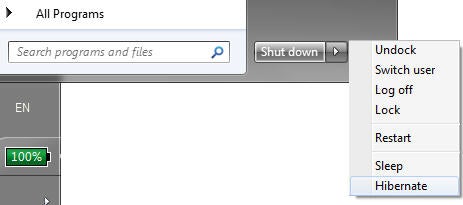
Choose Sleep or Hibernate depending on how long you plan to be away from the computer. (Click for larger image.)You need to think about when you want to save power by sending your laptop into Standby or Sleep mode, and when you want to hibernate it.
There's a difference. XP's Standby and Vista and Windows 7's Sleep modes keep your PC on, using some power, but less of it than in normal use. Hibernate saves the PC's state to the hard drive, then shuts it off entirely, so that no power is used.
On the other hand, Windows takes much longer--sometimes minutes--to go into and come out of hibernation. And those are minutes that the battery is draining heavily and you can't work.
XP's Standby mode isn't really all that efficient. If your laptop will be inactive for more than about half an hour, hibernate it. Otherwise, use Standby.
But Vista and Windows 7 do a much better job with their Sleep mode. Don't bother hibernating your PC unless you think you're going to go more than two or three hours without using it.
Myth: Adding RAM saves battery life.
True, more RAM means less hard drive access, and the hard drive uses a lot of electricity. But RAM uses electricity as well, and unless you're doing a lot of multitasking (not a good idea when you're on battery power), more RAM won't reduce hard drive use.